Working with Others
Workflow on the Dashboard
Section titled “Workflow on the Dashboard”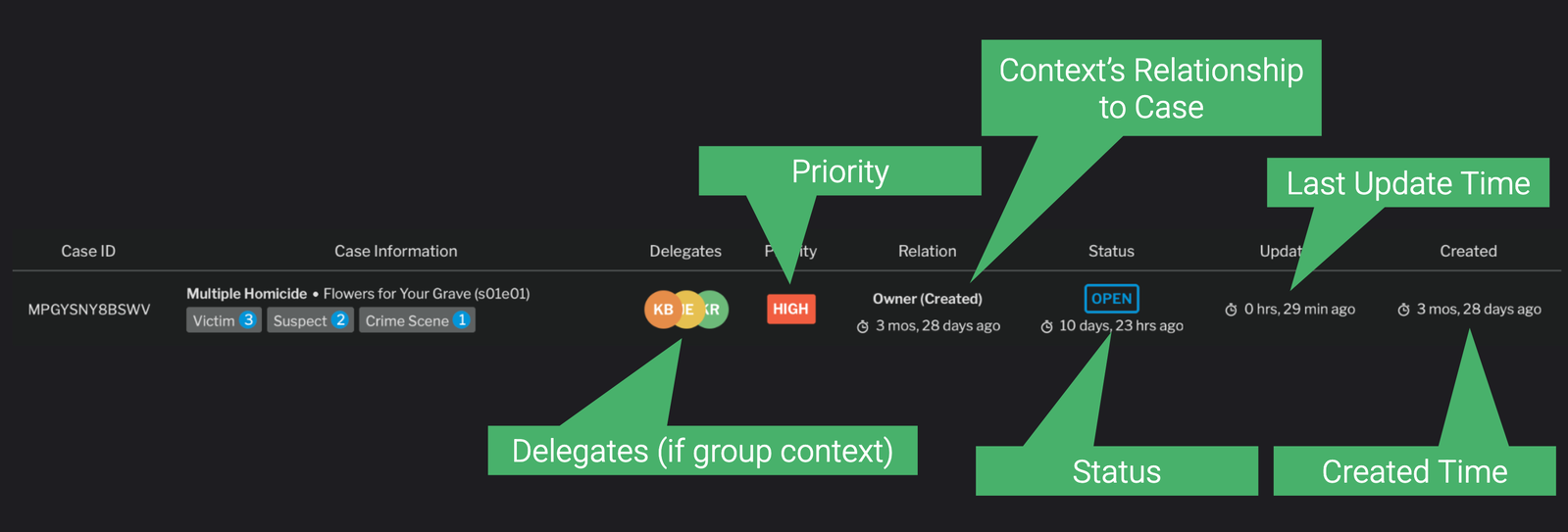
Case Dashboard Row
Case Workflow Widget
Section titled “Case Workflow Widget”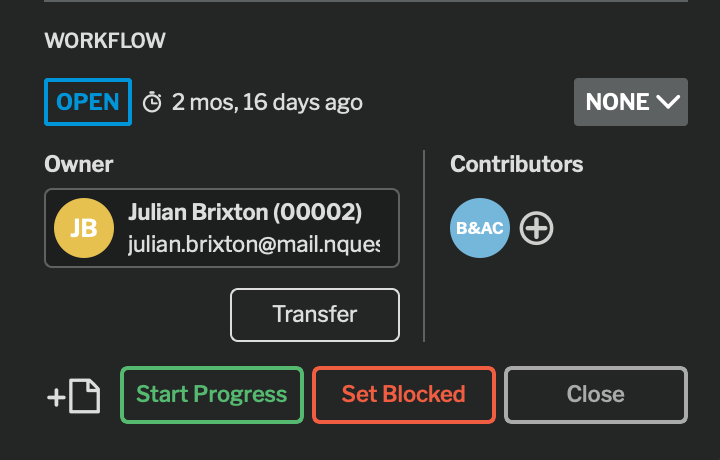
The workflow widget is the main place to change the state of a case.
This is where you can manage status, priority, ownership, and contributors. The workflow widget changes layout slightly based on your context and relationship of that context to the case.
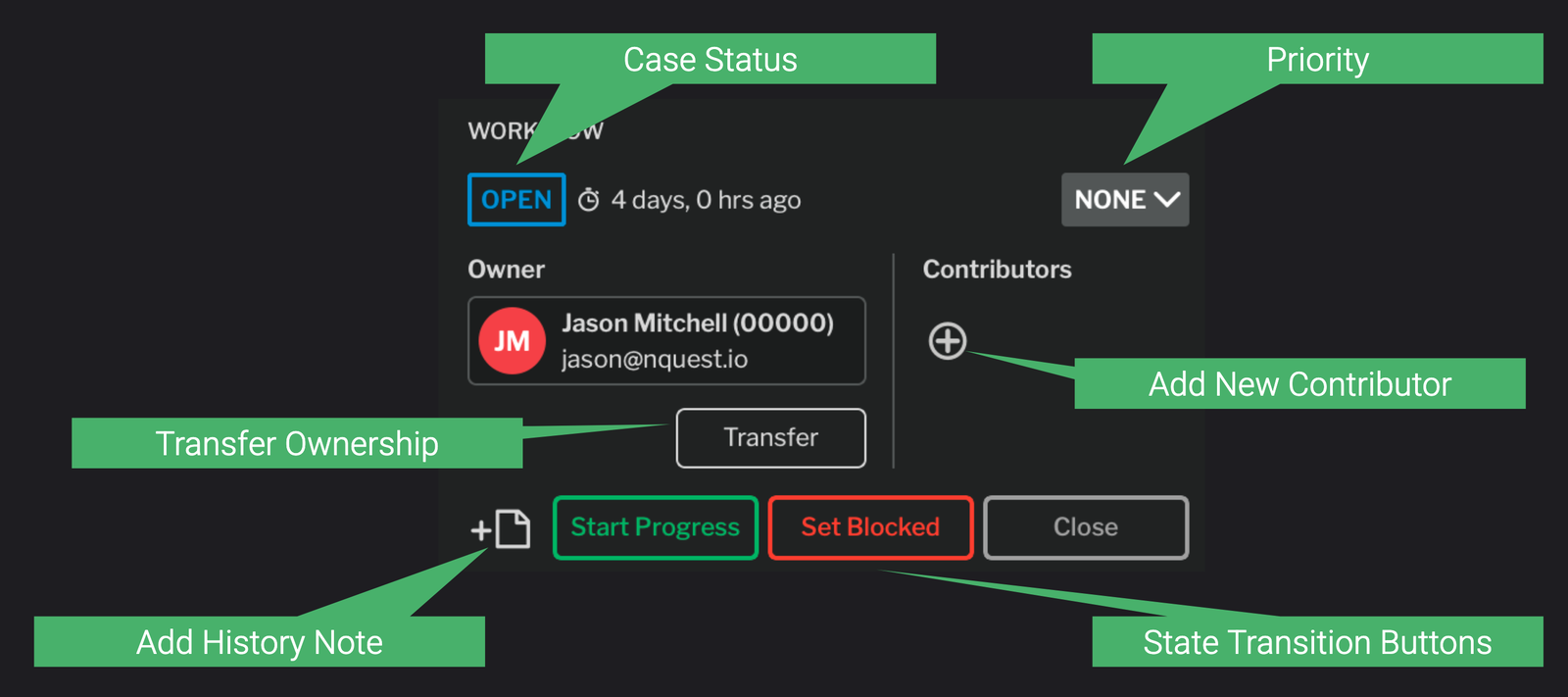
Workflow Widget
Ownership
Section titled “Ownership”Cases have an owner (either a user or a group). The owner of a case has full control over what happens to that case.
Group ownership can be delegated to individual members of a group. All group admins also have ownership permissions for all group-owned cases.
The context the case is created in by default has ownership. If a case is created by a non-group admin in a group context, that case is auto-delegated on creation to that user.
Transferring Ownership
Section titled “Transferring Ownership”Transfer Case
To change the owner of a case, select the ‘Transfer’ button in the workflow widget.
This will bring up the transfer case dialog.
Select the user or group to transfer ownership of the case to, optionally write a note, and press ‘Submit’.
Contributors
Section titled “Contributors”Contributors do not own cases, but they can edit cases. Either a group or an individual user can be a contributor. A case can have multiple contributors.
Like owners, contributors have delegates if they are a group. Group admins have contributor rights to all group-contributor cases, and delegates also have group-contributor rights.
Group members who are not admins or delegates have edit-only access (no workflow access).
Contributor Actions
Section titled “Contributor Actions”Contributors can add/remove case attachments, edit the underlying case (but not case library details), reassign a case (transfer to a new contributor), and return a case (send back to the owner / remove themselves as a contributor).
They can also manage their own case status (independently for each contributor), add history notes, and delegate contributor rights for the case (if they are a group contributor).
Requesting a Contributor
Section titled “Requesting a Contributor”Request Contributor
To request a contribution from an individual or group, select the (+) button in the contributors column of the workflow widget.
Then, in the Request Contribution dialog, select the user or group to request a contribution from, type an optional note, and press submit.
Viewing Contributors
Section titled “Viewing Contributors”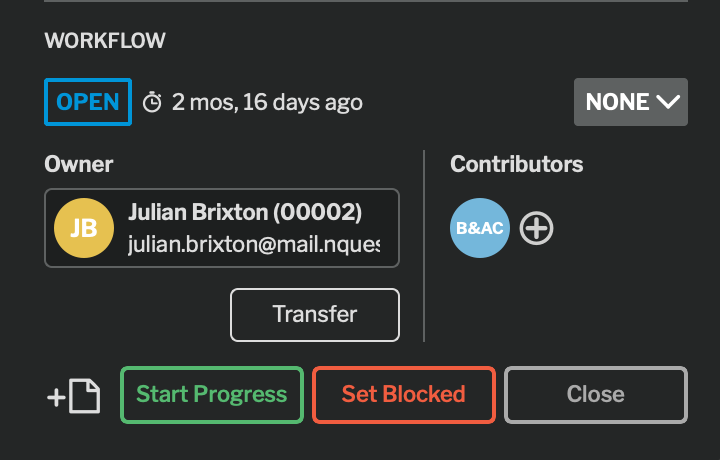
Contributors can be viewed on the workflow widget, and in the case access tab.
Revoking a Contribution Request
Section titled “Revoking a Contribution Request”Revoke Contributor
To revoke a contribution request, select the (x) on the contributor you’d like to revoke. Type an optional note, and press submit.
Returning a Case
Section titled “Returning a Case”Return Case
To return a case, select Return in the workflow widget and type an optional note. This removes your context as a contributor, sets it as a viewer, and leaves a note in the history.
Reassigning a Case
Section titled “Reassigning a Case”Reassign Case
To reassign your contributions to a new user or group, select the Reassign button.
This brings up the Reassign Case dialog. Select the user or group to reassign the contribution to, type an optional note, and press submit.
This will remove your context as a contributor, set your context as a viewer, add the new context, and leave a note.
Delegates
Section titled “Delegates”As a group admin of a group owned/contributor case, you can delegate that case to members of your group.
Delegates have the full owner/contributor rights on behalf of the group.
An owner or contributor group can have multiple members delegated to the same case.
Delegating a Case
Section titled “Delegating a Case”Delegate Case
To delegate, click the (+) underneath the owner or contributor group. Select the group member to add in the Add Delegate dialog and press submit.
Viewing Delegates
Section titled “Viewing Delegates”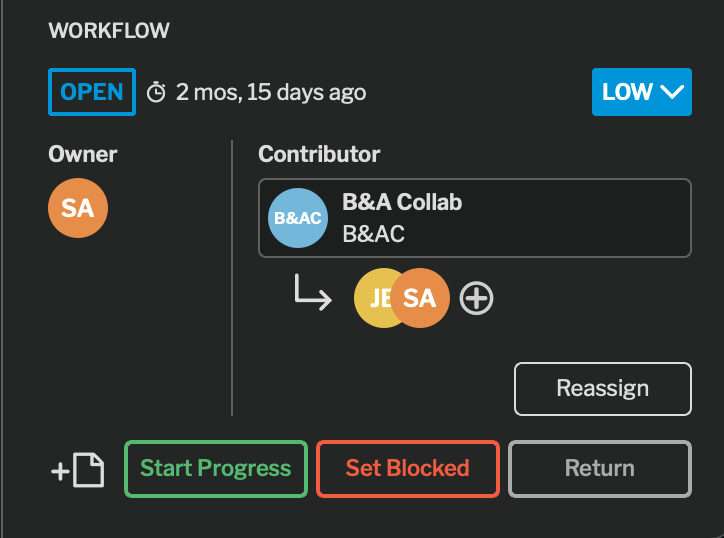
Delegates can be viewed on the workflow widget, and in the case access tab. Only group cases can be delegated.
Removing a Delegate
Section titled “Removing a Delegate”To remove a delegate, select the (x) button on the delegate to remove.
Compartments
Section titled “Compartments”Compartments can be assigned to cases. A compartment has a compartment controller (admin) and an access list.
If a compartment is assigned to a case, users who are not on the access list for the compartment will not be able to see the case or its’ contents, regardless of any other permissions they may have.
Adding a Compartment
Section titled “Adding a Compartment”Add Compartment
To add a compartment, select the (+) icon next to compartments, select a compartment, and press the submit button.
Any user who is a member of a compartment may add a compartment to a case.
Removing a Compartment
Section titled “Removing a Compartment”To remove a compartment, hover over the compartment and click the (x) on the compartment.
Case Access Tab
Section titled “Case Access Tab”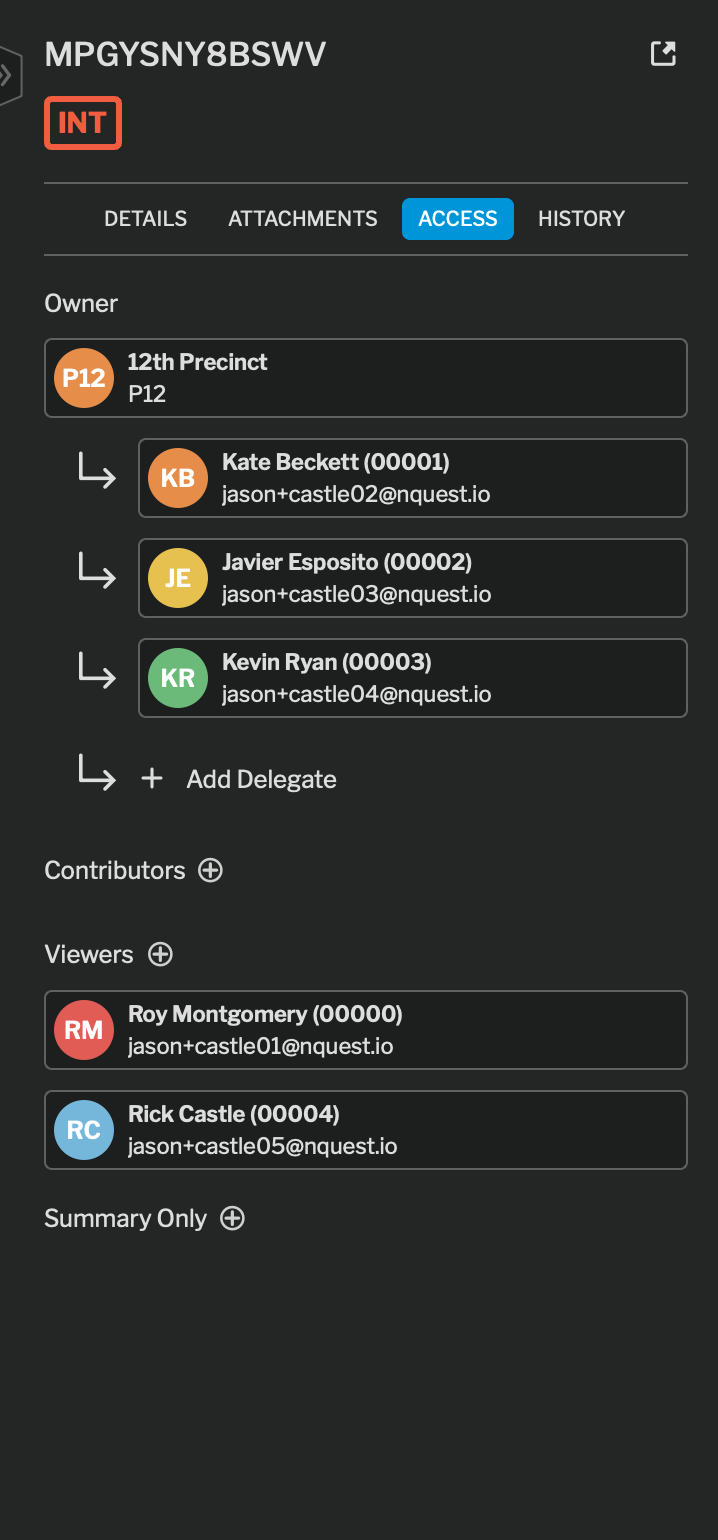
Case Access Tab
The Case Access tab allows managing users with access to the case.
Viewers and summary viewers can be added and removed from the access tab.
You can also see mandatory access grants to the case (these cannot be removed).
Viewers and Summary Viewers
Section titled “Viewers and Summary Viewers”View and summary view access allow granting read-only permissions to a case.
The difference between viewers and summary viewers is viewers can open the Case (and view the investigation synopsis); summary viewers can only see the library detail data.
When users relinquish owner or contributor status, the system automatically grants viewer access.
Adding a Viewer
Section titled “Adding a Viewer”Add Viewer
To add a viewer or summary viewer, select the (+) icon next to viewers, select a user, and press the submit button.
Removing a Viewer
Section titled “Removing a Viewer”To remove a viewer or summary viewer, click the (x) next to the access level.
Mandatory Access
Section titled “Mandatory Access”Access levels listed as MANDATORY are not managed by the case owner, but are managed by the nQuest system.
Users can be set as mandatory summary viewer or mandatory viewer for the entire library by an account global administrator.
Group Viewers
Section titled “Group Viewers”Within a group, groups can have view-only users or summary-view only users.
These group members are only group members for the purposes of granting view or summary view access to any case which the group has access to, and are not otherwise visible in the access list.