Capture Nodes
nQuest has a browser extension for Chrome, Edge, and Firefox. We also have a plugin for the Shelter discord client. These tools allow making timestamped captures of data from the web and ingesting them into a case.
We support three types of browser capture today:
- Page Capture
- Text Capture
- Frame Capture
We also support one type of Discord capture:
- Discord Message Capture
For information on installing capture tools, see Installing Capture Tools.
The Capture Manager
Section titled “The Capture Manager”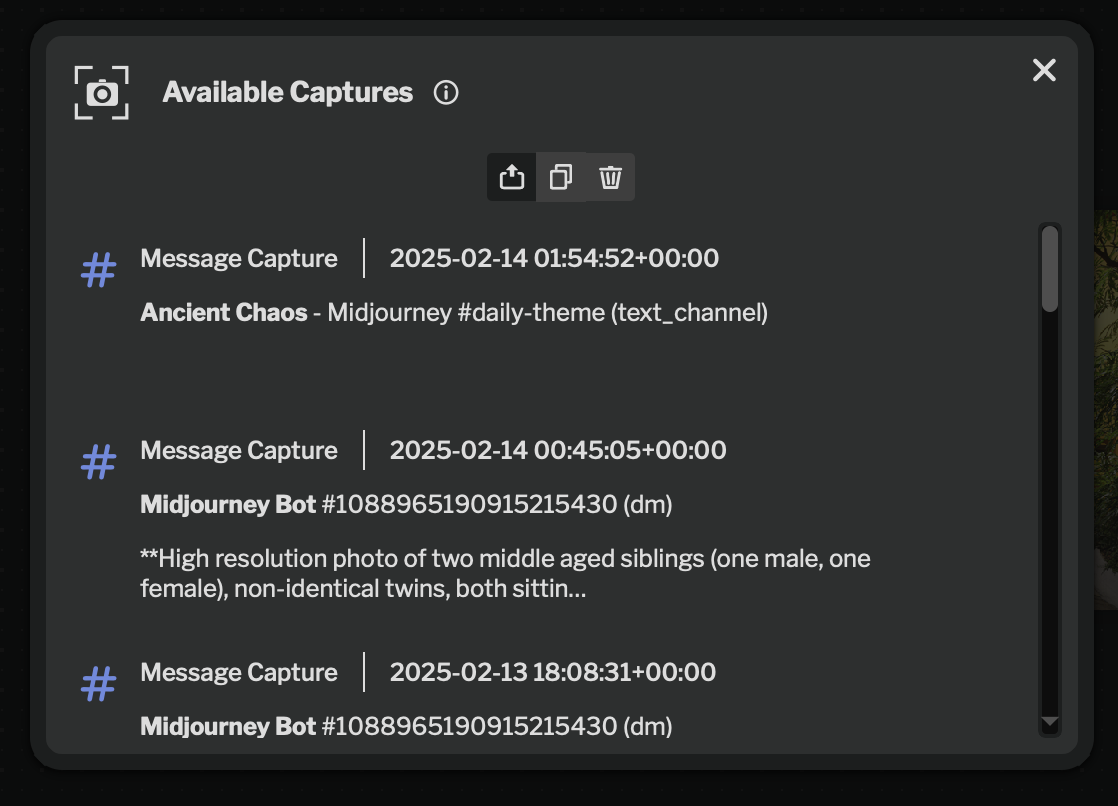
Capture Manager
When Capture Node is selected from the add node menu, the capture manager will open. This is where you can see captures from various sources that have been made on your system and are available for adding to a case.
The mode selector at the top of the capture manager determines what happens when you click on a capture in the capture manager.
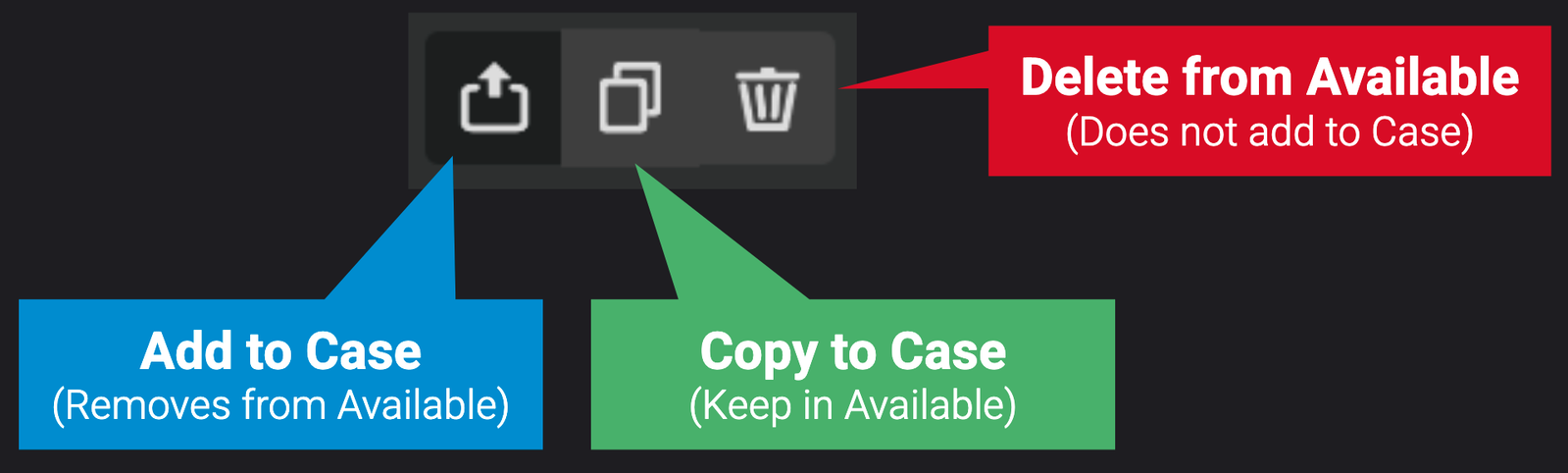
Capture Manager Mode
Adding a Capture to a Case
Section titled “Adding a Capture to a Case”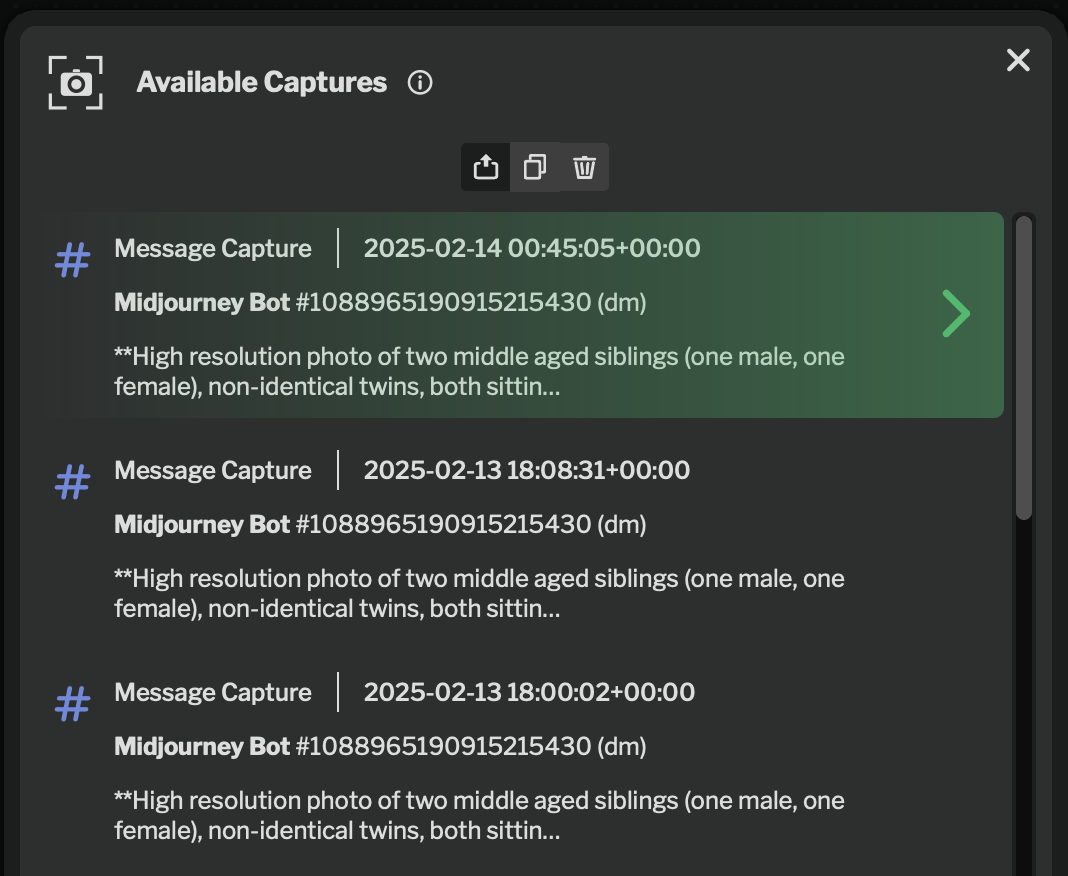
Capture Manager Add
To add a capture to the case, select the add to case icon in the mode selector, and hover over the capture you want to add. The row will turn green, indicating an add is pending. Click to add the capture to the case.
Copying a Capture to a Case
Section titled “Copying a Capture to a Case”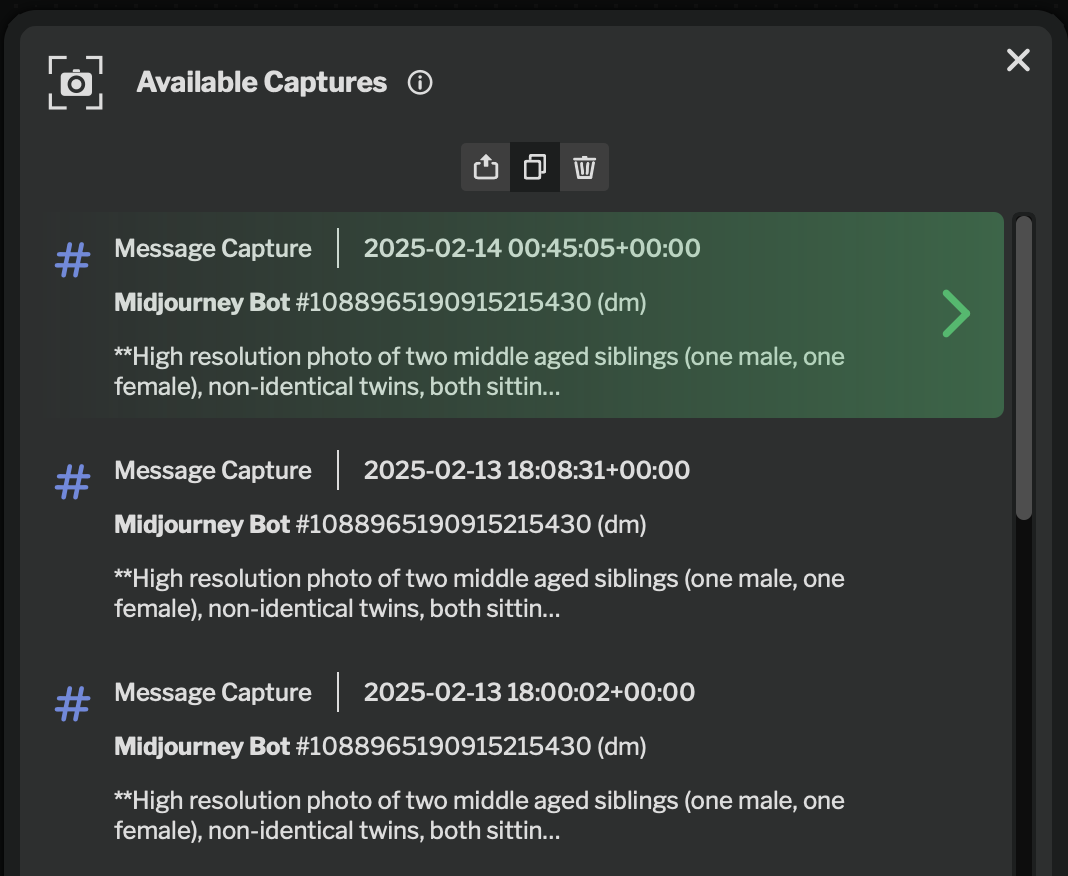
Capture Manager Copy
To copy a capture to the case while keeping it in the capture manager, select the copy to case icon in the mode selector, and hover over the capture you want to copy. The row will turn green, indicating a copy is pending. Click to add the capture to the case.
Removing a Capture from the Capture Manager
Section titled “Removing a Capture from the Capture Manager”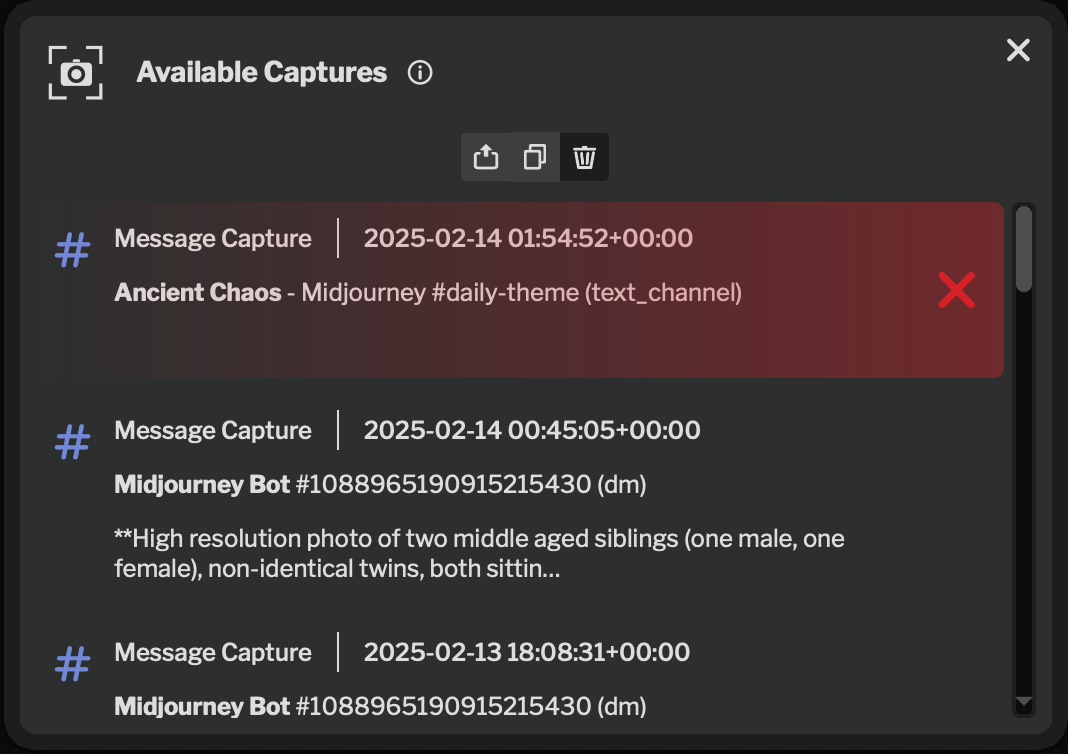
Capture Manager Delete
To delete captures from the capture manager, select the trash can icon in the mode selector, and hover over the capture you want to delete. The row will turn red, indicating a delete is pending. Click to remove the capture from the capture manager.
Browser Capture
Section titled “Browser Capture”To add a browser capture node to a case, first perform the capture in your browser, then go to your case and select the capture node from the add nodes tray. This will bring up a list of available captures.
Page Capture
Section titled “Page Capture”Page Capture nodes allow you to take an immutable snapshot of a site and ingest it into the case.
To perform a page capture, select Page Capture from the browser extension menu or press Ctrl+Shift+C.
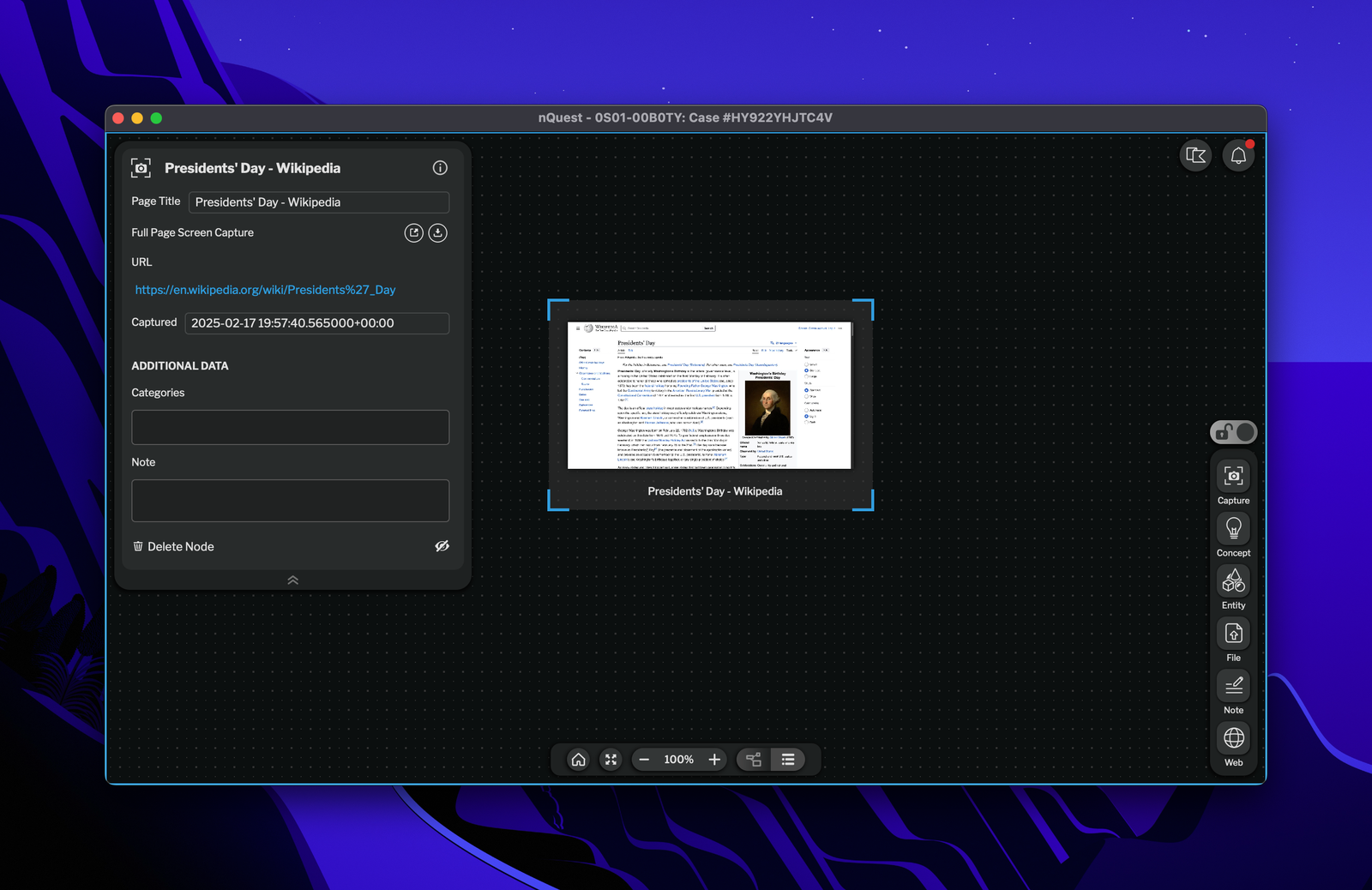
Page Capture Node in Graph
Text Capture
Section titled “Text Capture”Text Capture
Text Capture nodes allow you to take an immutable snapshot of text from a given site and ingest it into the case.
To perform a text capture, select the text you’d like to capture in your browser and then select Text Capture from the browser extension menu or press Ctrl+Shift+C.
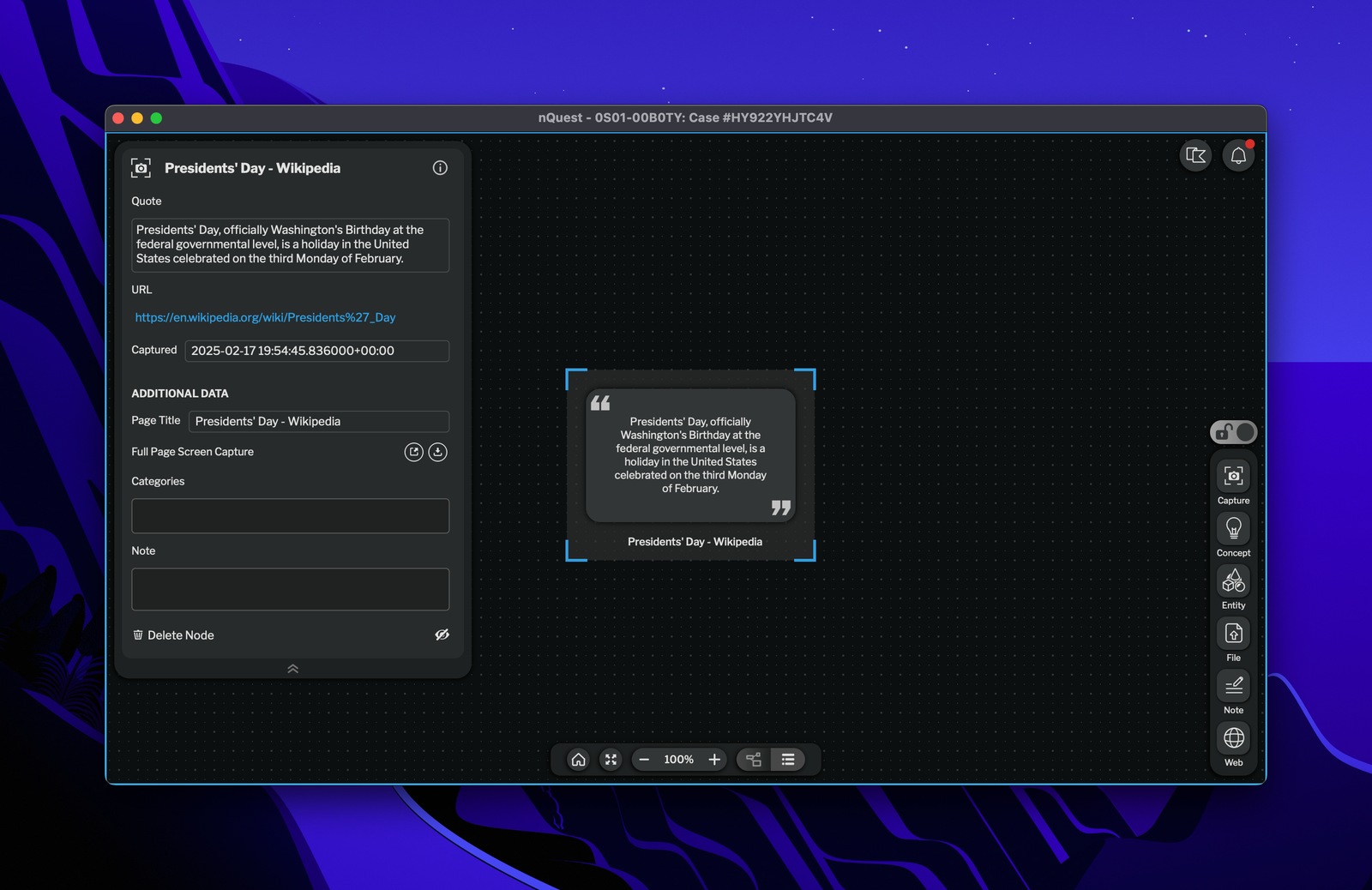
Text Capture Node in Graph
Frame Capture
Section titled “Frame Capture”Frame Capture
Frame Capture nodes allow you to take an immutable snapshot of an image from a given site and ingest it into the case.
To perform a frame capture, select Frame Capture from the browser extension menu, or press Ctrl+Shift+X, and then drag and drop a frame on the screen to capture the frame.
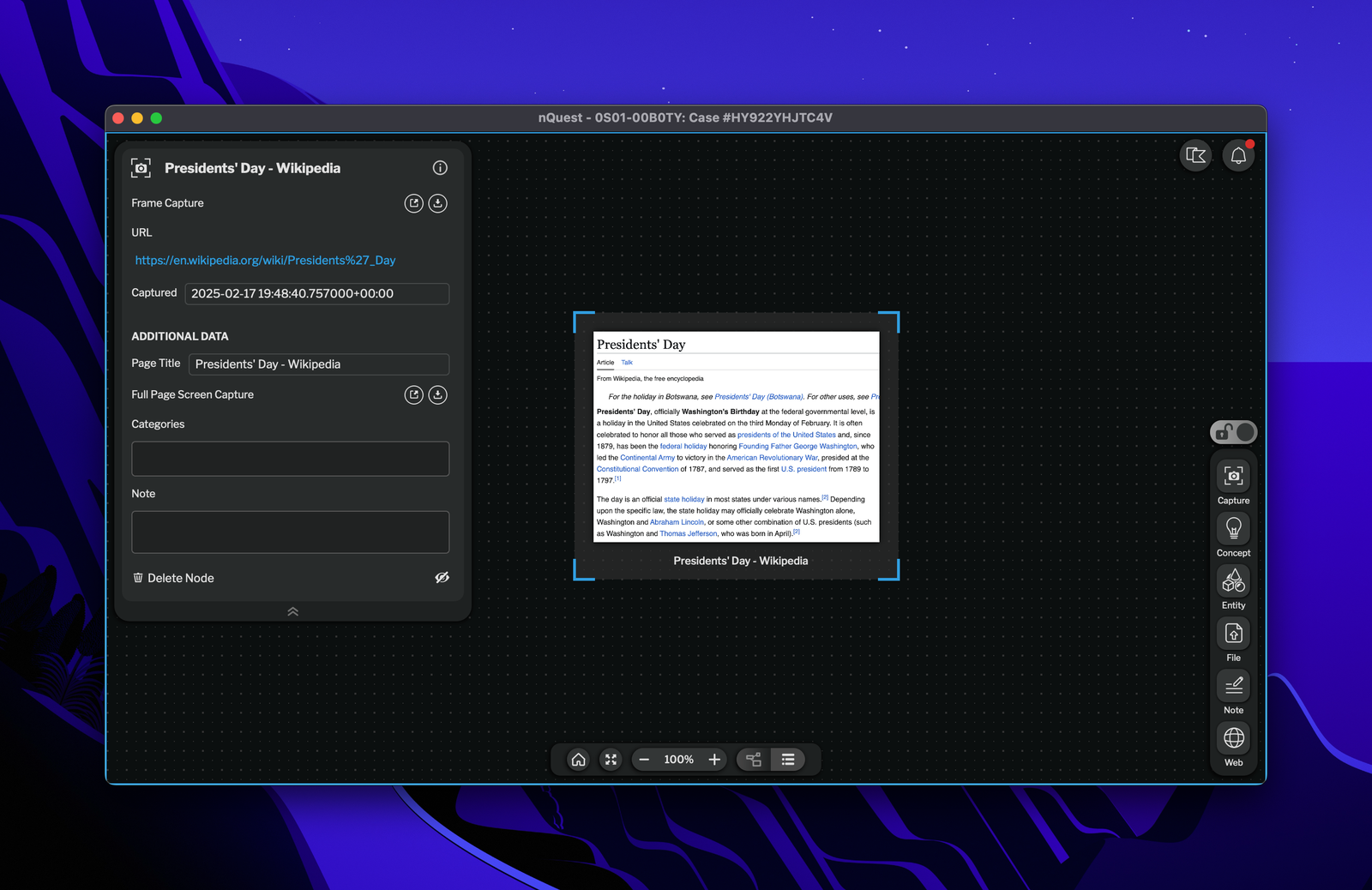
Frame Capture Node in Graph
Discord Capture
Section titled “Discord Capture”Discord Capture
Discord Capture nodes allow you to take an immutable snapshot of a message from a given Discord message and ingest it into the case.
After installing the Discord Capture plugin, you can perform a discord capture by right clicking a message in Discord and selecting nQuest Capture.
On the capture node, you can see the original message, any attachments on the message, and the message history of the channel before the message was sent.
Hovering over a username’s ID icon will show a tooltip with alternate usernames and the ID. Clicking on the ID icon copies the numeric ID to your clipboard.
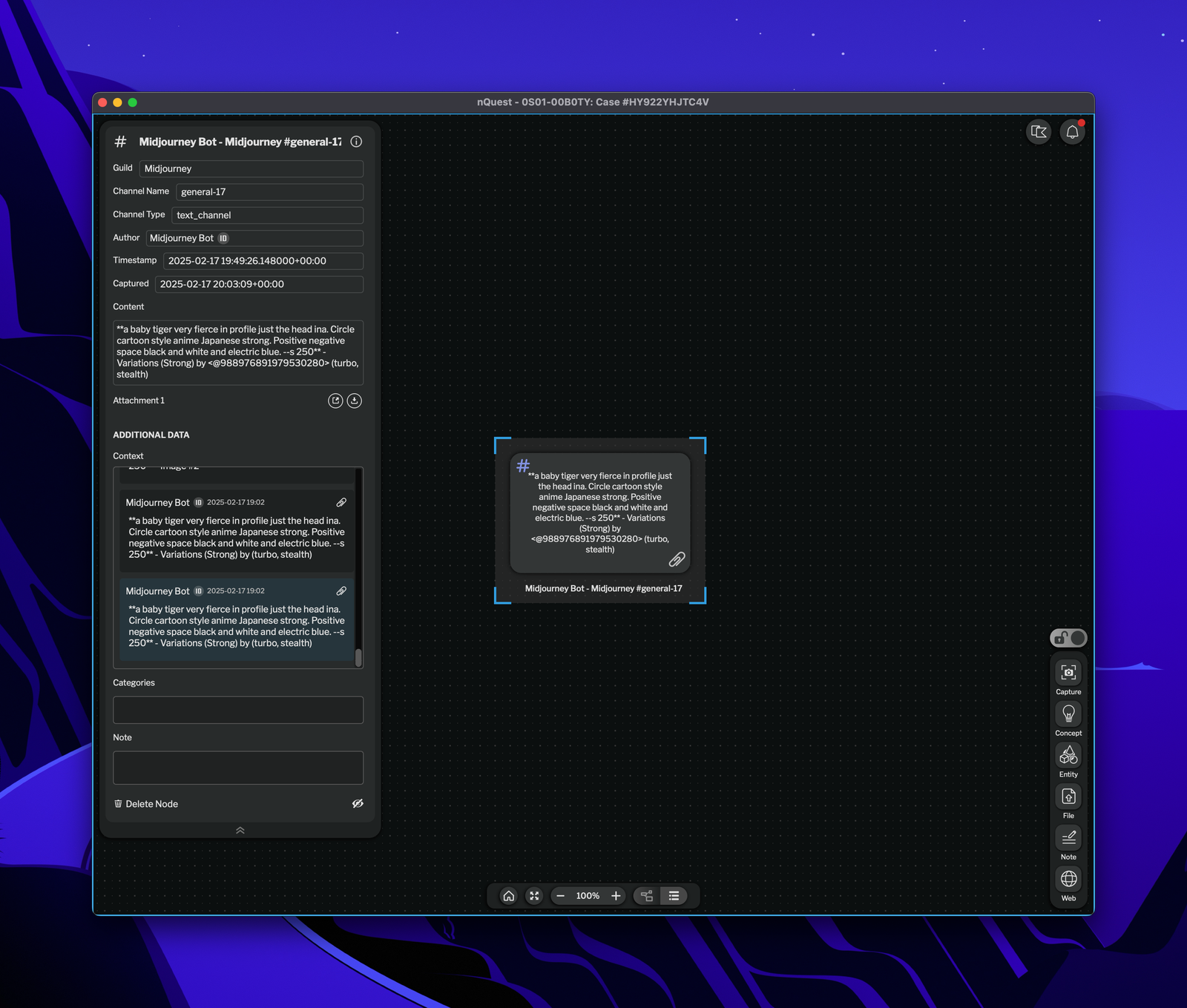
Discord Capture Node in Graph