Signal Sets
Signal Sets are collections of signals that can be added to a case. They group signals that are important in specific processes or investigation types.
Signal sets must be customized in the library in order to be used in a case.
The Signal Set Manager
Section titled “The Signal Set Manager”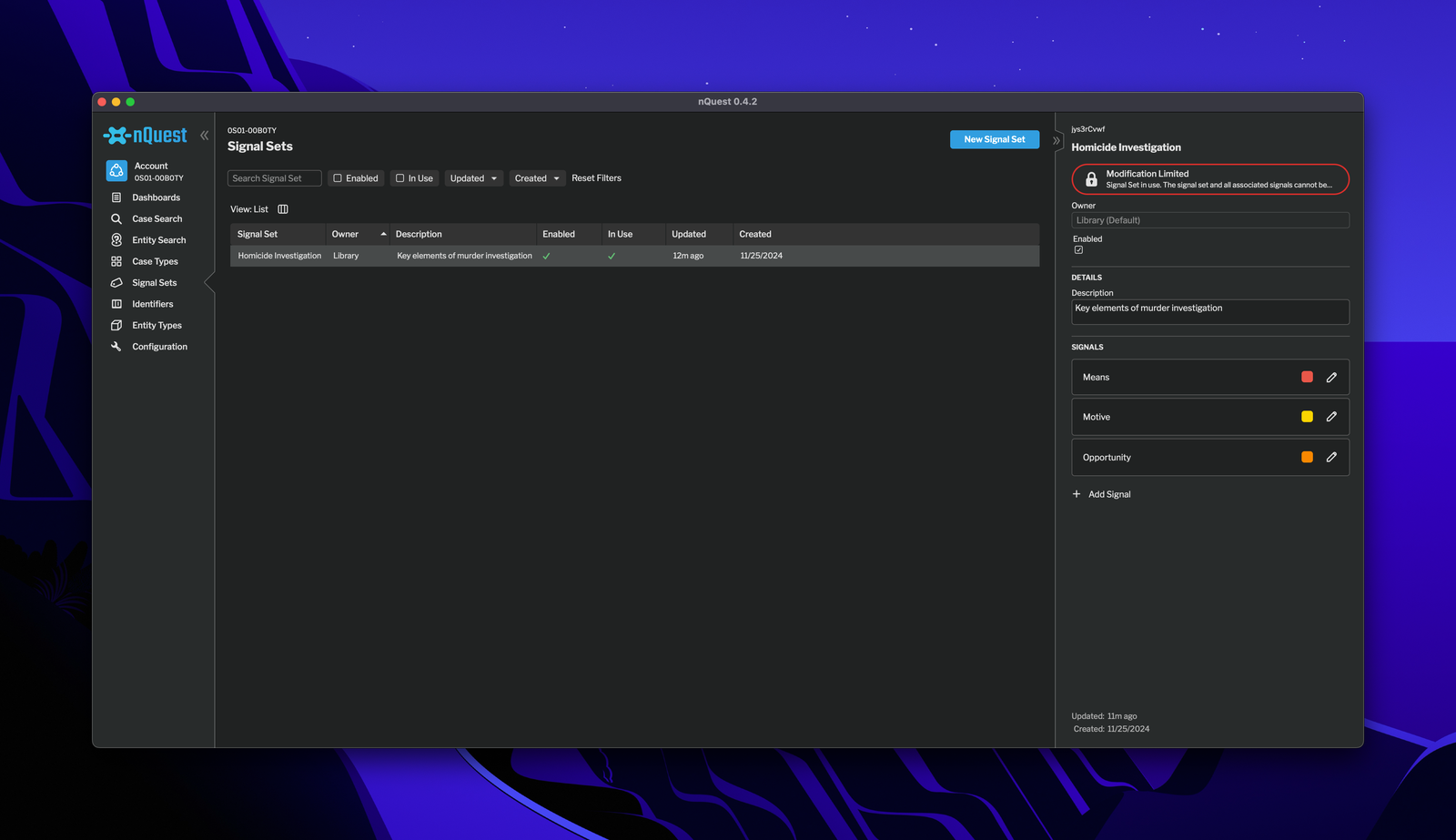
Signal Set Manager
The signal set manager is the main interface for managing signal sets. It allows you to create, edit, manage, and delete signal sets. You can access the signal set manager if you are a library administrator or a group administrator.
Signal Set Properties
Section titled “Signal Set Properties”Signal Set Ownership
Section titled “Signal Set Ownership”Signal sets can be owned by a library or a group. When a signal set is owned by a library, it is available to all users in the library.
When a signal set is owned by a group, it is available to all users within the group. Users who are not part of the group cannot add signals from the signal set to a case, but they can view the signal set signals if an authorized user has added them to the case.
Enabled/Disabled Signal Sets
Section titled “Enabled/Disabled Signal Sets”Signal sets can be enabled or disabled. When disabled, the signal set does not appear in the signal set tray. This prevents new signal nodes from the signal set from being added to a case.
Signal sets should be disabled if they are not currently in use / are deprecated.
Signals within a Signal Set
Section titled “Signals within a Signal Set”Signal sets exist to organize signals. Signals can have colors, descriptions, and can be enabled/disabled. They also have order, which drives the order of signals within the signal set tray.
Signal Order
Section titled “Signal Order”Reordering Signals within a Signal Set
Signals have order within a signal set. This drives the order of signals within the signal set tray. If applicable, it should correspond to the order of the signals within the process they represent.
To reorder signals, click on the signal in the right panel and drag it to the desired position.
Signal Set Operations
Section titled “Signal Set Operations”Creating a Signal Set
Section titled “Creating a Signal Set”Creating a Signal Set
To create a signal set, click the Create Signal Set button in the top right corner of the signal set manager and select a name, then press Create on the bottom right. The new signal set will be added to the signal set manager.
Enabling/Disabling Signal Sets
Section titled “Enabling/Disabling Signal Sets”To enable/disable a signal set, click the toggle button in the top right corner of the signal set manager and click Save.
Deleting a Signal Set
Section titled “Deleting a Signal Set”To delete a signal set, click the delete button in the bottom right corner of the signal set manager.
Signal Operations
Section titled “Signal Operations”Signals must be contained within a signal set. All changes to signal configurations are within the context of a signal set inside of the signal set manager.
Creating Signals
Section titled “Creating Signals”Creating a Signal
To create a signal, click the Add Signal button in the right panel of the desired signal set. Name the signal, and optionally add a description and color. Signals can also be created in either the enabled or disabled state.
The color selected here is the color of the signal when active in a case.
Editing Signal Properties
Section titled “Editing Signal Properties”To enable/disable a signal, click the edit icon next to the signal. This enable changing the signal’s name, description, and color, and enabled/disabled state. Saving will update the signal.
Deleting Signals
Section titled “Deleting Signals”To delete a signal, click the delete icon next to the signal. This will remove the signal from the signal set. Note that signals may only be deleted for a not-in-use signal set.