Entity Definitions
Entity definitions help standardize what information is collected about entities across the nQuest platform.
To manage entity definitions, a user must be either a library administrator or a global administrator.
Entity Types
Section titled “Entity Types”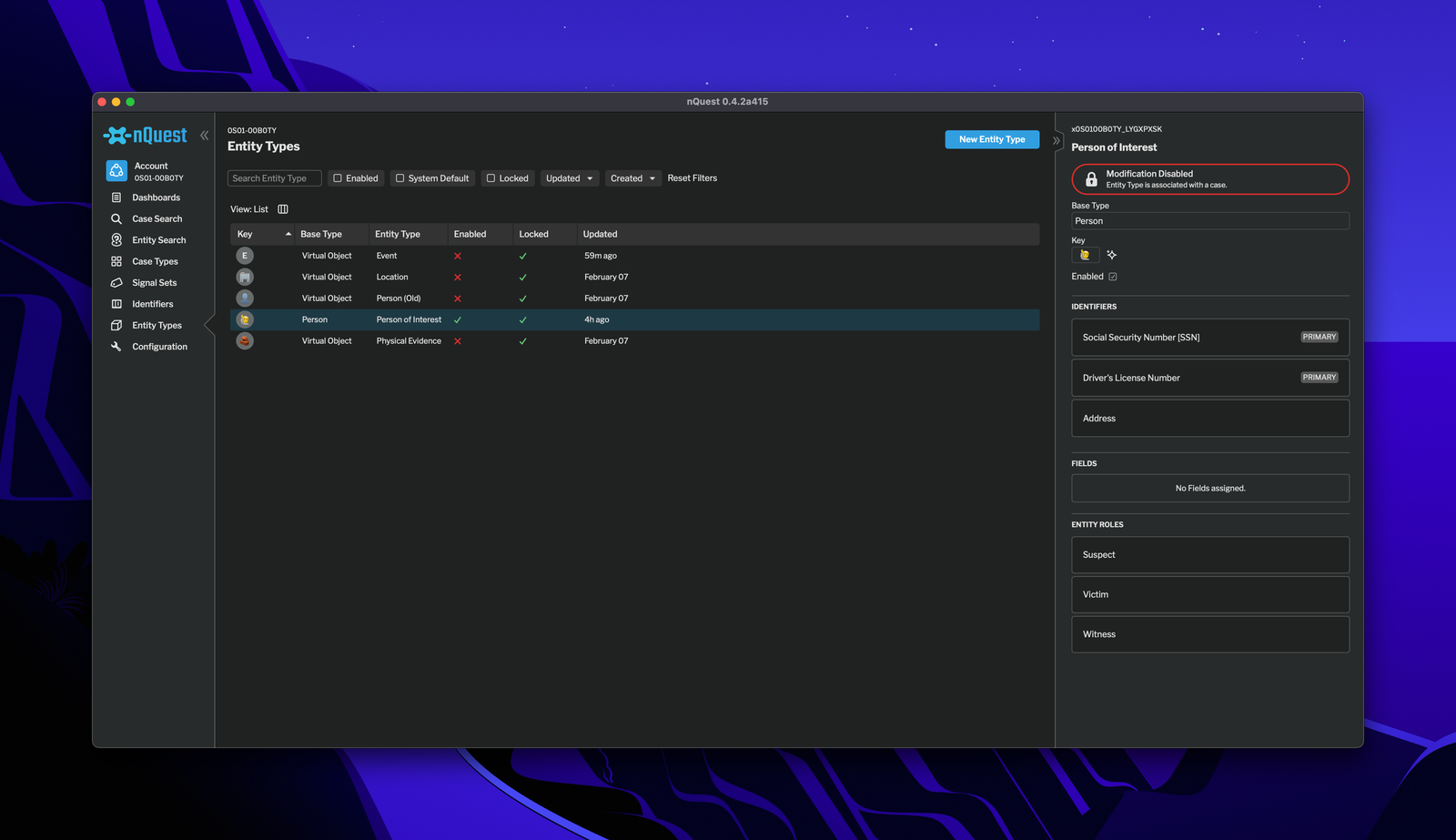
Entity Type Manager
Custom entity types can be defined in the entity type manager. This allows subclassing any available Base Type and adding custom fields to the entity type. It also enables associating entity type roles to the entity type.
Base Entity Types
Section titled “Base Entity Types”Any available base entity type can be subclassed to create a new entity type. For more information on base entity types, see Entity Node Base Types.
Entity Type Operations
Section titled “Entity Type Operations”Creating a Custom Entity Type
Section titled “Creating a Custom Entity Type”Creating a Custom Entity Type
Custom entity types can be created by selecting Create New Entity Type and filling out the form.
Editing a Custom Entity Type
Section titled “Editing a Custom Entity Type”To edit a custom entity type, click on the entity type in the entity type manager and edit the fields in the right panel. Note that once an entity type is in use, some fields cannot be edited.
Deleting a Custom Entity Type
Section titled “Deleting a Custom Entity Type”If an entity type is not used in any cases, it can be deleted. To delete an entity type, select the entity type and click the trash can icon in the bottom right of the right panel.
Entity Type Roles
Section titled “Entity Type Roles”Adding an Entity Role
Entity Type Roles can be added to more than one entity type (for example, a Suspect role could apply to both an Employee and a Customer).
To create a new entity role, you can select Create New Entity Role and enter a name, or select from the list of existing roles.
Entity Type Properties
Section titled “Entity Type Properties”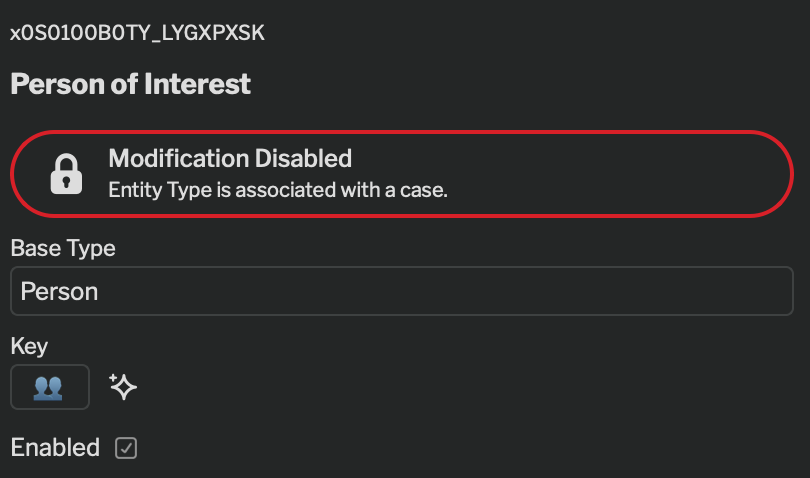
Entity types have a name and a key that are used to identify the entity type in the system.
Additionally, entity types can be disabled (removing them from being able to added to new cases).
Entity Type Key
Section titled “Entity Type Key”The entity type key is a unique identifier for the entity type. It is either a single emoji or up to two alphanumeric characters. This key will appear as iconography on nodes to help indicate the type of entity.
After typing the entity type name, you can select an emoji or type a two-character key. You can also use the autogenerate button to create an LLM-generated selection (if your account is AI-enabled).
Field Types
Section titled “Field Types”| Field Type | Appearance | Ad-Hoc Allowed | Custom Allowed | Description |
|---|---|---|---|---|
| Checkbox |  |
☑️ | ☑️ | A checkbox that can be either true or false. |
| Dropdown | 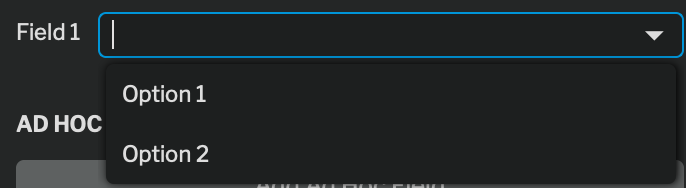 |
❌ | ☑️ | A dropdown with a defined set of options. |
| Date |  |
☑️ | ☑️ | A single date (including or not including time). |
| Date Range | 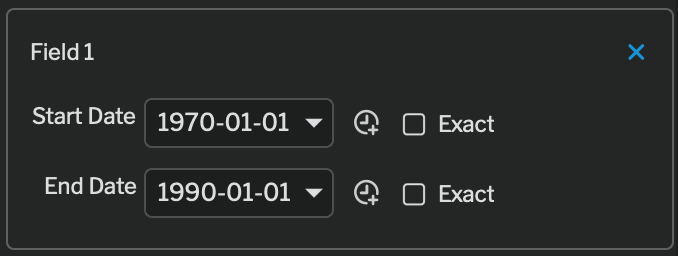 |
☑️ | ☑️ | A single date range (including or not including time). |
| Short Text |  |
☑️ | ☑️ | A single-line text field. |
| Text Box | 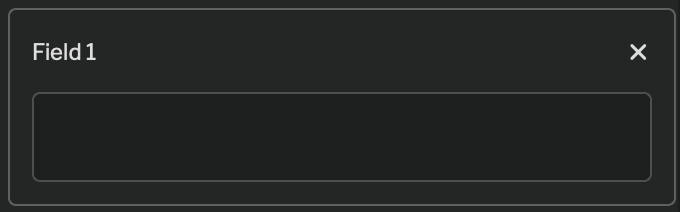 |
☑️ | ☑️ | A free-form text field. |
| Currency |  |
☑️ | ☑️ | A currency field. |
| Decimal |  |
☑️ | ☑️ | A decimal number. |
| Integer |  |
☑️ | ☑️ | A whole number. |
| Float |  |
☑️ | ☑️ | A floating-point number. |