Nodes
Node Types
Section titled “Node Types”| Icon | Node Type | Subtypes |
Purpose |
|---|---|---|---|
 |
Concept | <None> | Free text entry, callouts, emphasis |
 |
Note | <None> | Free text entry |
 |
Capture | - Browser Page - Browser Frame - Browser Text - Discord Message |
Take immutable snapshots of data from an external source |
 |
Document | - Generic Document - Image Document |
Store and manage documents within a case |
 |
Entity | - Person - Account - Event - Virtual Object <Customizable> |
References to specific, definable objects (like a person, account, or car) |
 |
Signal | <Customizable> | Investigation process steps or components of a case (ex. motive, adverse media screen) |
 |
Web | <None> | Mutable references to external web content |
Adding a Node
Section titled “Adding a Node”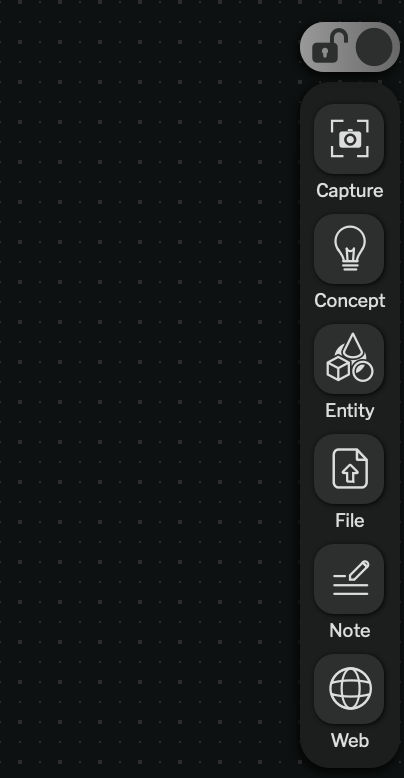
Most nodes are added from the add node menu, on the bottom right of the screen. A case must be unlocked to add a node. This will open a pop-over to name the node and select basic properties.
There are some special cases where nodes are added from other places:
- Many types of nodes can be copy-pasted inside of nQuest.
- Pasting text into the graph will create a concept node, note node, or web node depending on the text.
- Files can be dragged and dropped into the graph to create a document node.
- Signal nodes are added from the Signal Node Selection Tray (see Adding a Signal Node below).
Adding a Signal Node
Section titled “Adding a Signal Node”Signal nodes are added from the Signal Node Selection Tray, not the add node menu. Only one instance of a given signal node can exist in a case.
For more information on signal nodes, see Signal Nodes.
Deleting a Node
Section titled “Deleting a Node”To delete a node, select the node and press the delete key, or select delete node from the left panel menu.
Node Properties
Section titled “Node Properties”Categories
Section titled “Categories”Categories
Categories allow you to free text classify nodes on your graph. Any category currently on the case is selectable, and you can add new ones by typing and pressing enter in the field.
Notes are free text that can be added to any node (except a concept node) in a case. In the left panel, each node has a notes field. (Note nodes are a note, categories, and nothing else).
This can be used to track free text information about a node that doesn’t need to appear on the graph itself.