AI Background Check
nQuest’s AI Background Check tool helps investigators quickly search through large volumes of case data to surface potential red flags in background investigations. By analyzing the entities, documents, and relationships in your case, it highlights discrepancies and adverse findings so you know where to look first.
This tool is designed to assist — not replace — human review. It acts as a starting point, directing your attention to areas that may warrant deeper investigation.
Getting Started
Section titled “Getting Started”The AI Tools button is located in the top-right toolbar of the case graph view. Click it to open the tool panel. Select Background Red Flags from the dropdown and click Submit to start the analysis. The tool runs in the background - you can continue working on your case while it processes.
To cancel a running check, hover over the AI Tools button and click to cancel.
Results
Section titled “Results”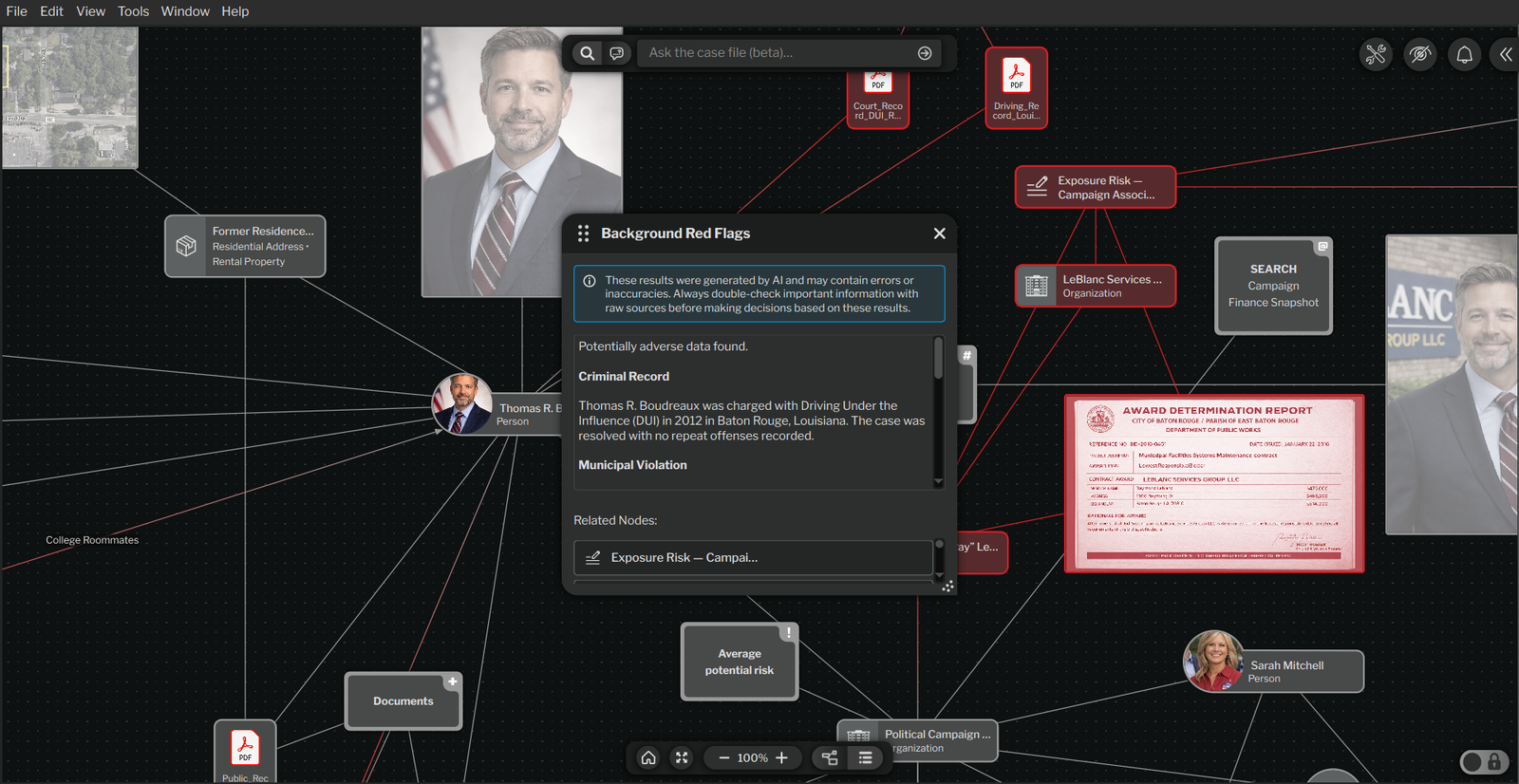
Background Check Results
When complete, a results panel displays:
- Red Flag Summary: A clear breakdown of any adverse findings, discrepancies, or concerns found in your case data.
- Related Nodes: The specific nodes tied to each finding, highlighted directly on your graph for easy navigation.
Related nodes are automatically highlighted on your case graph, giving you a visual map of where findings are concentrated.
Low Confidence Results
Section titled “Low Confidence Results”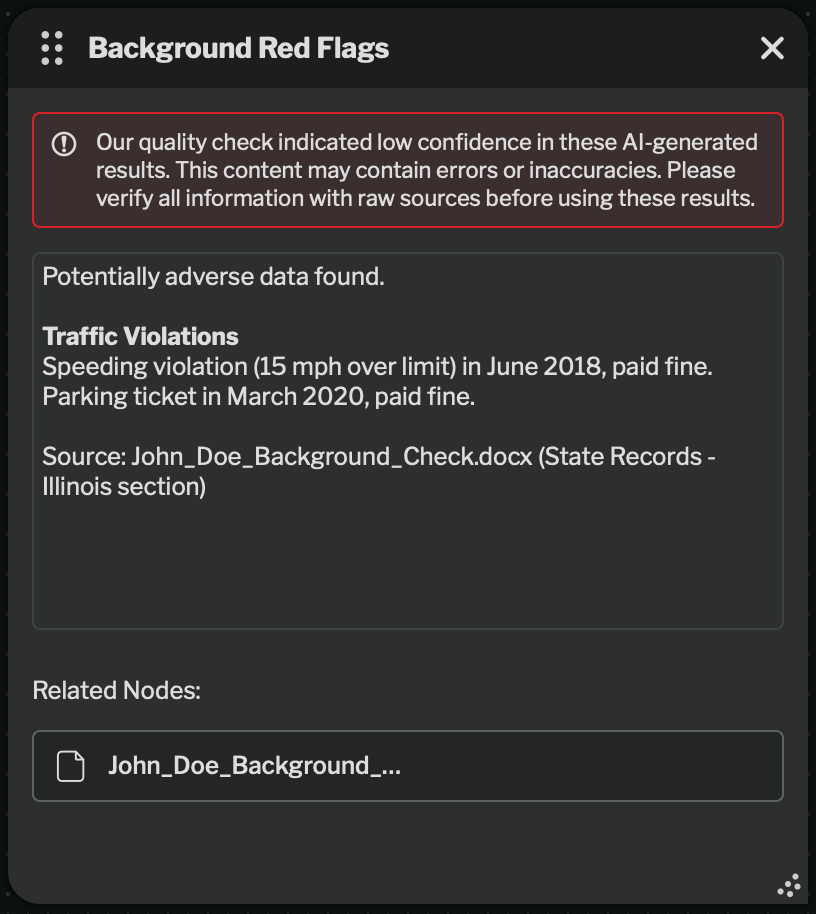
Low Confidence Warning
Occasionally, results may include a low confidence warning. This means the tool’s internal quality check flagged potential issues with the analysis. These results should be verified with extra care against your source materials.
Tips for Best Results
Section titled “Tips for Best Results”- Structure your case as a single-subject background investigation.
- Include source documents with relevant data (employment history, addresses, records, and more).
- Link related nodes together (the tool considers relationships when analyzing your case).