
Decide What You Need the Source to Establish.
Before collecting, write down the observation you want to preserve. Is it a contact detail displayed on a page, a statement in a profile, or a visual element worth comparing? That question helps you choose the capture and gives your later review a purpose.
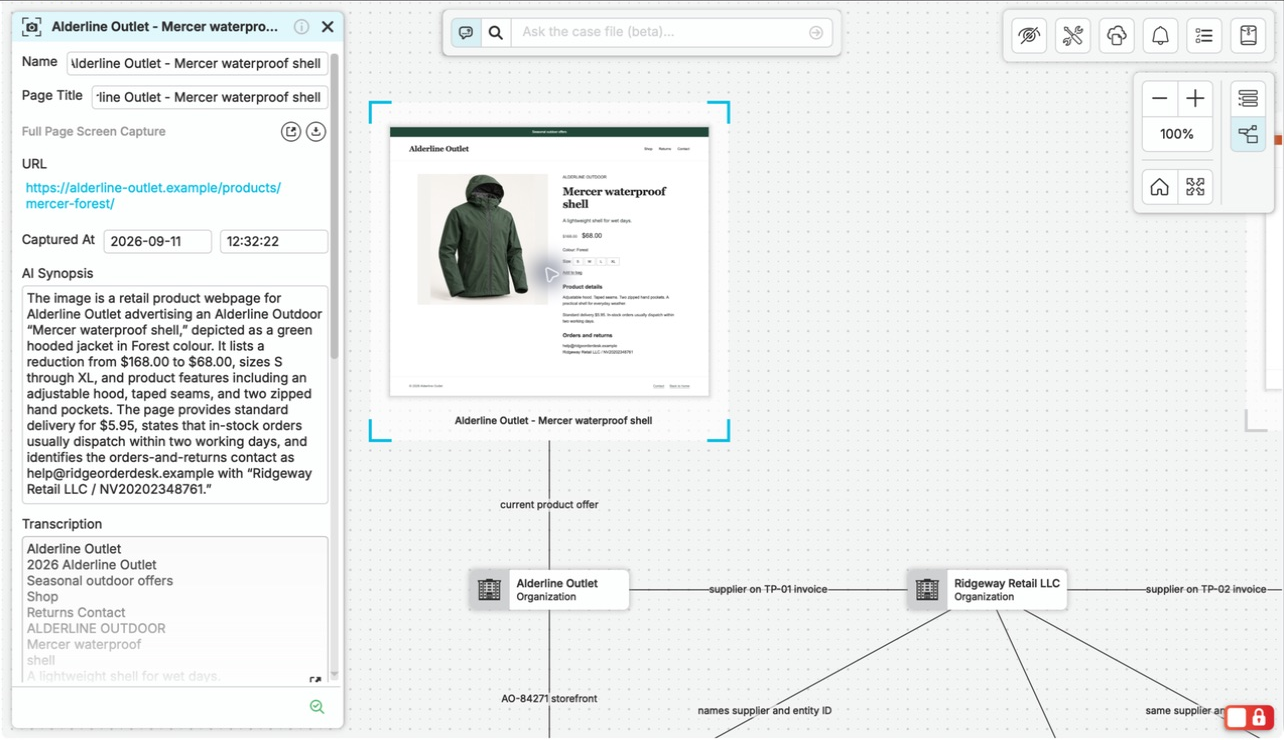
In the counterfeit example, Alderline Outlet and Trail Lantern both offer the Mercer jacket. Preserve each offer with its URL and collection time, then connect it to the corresponding purchase. The advertised photograph and the physical specimen answer different questions.
Match the Capture to the Observation.
nQuest offers page, text, and frame captures. Text and frame selections also retain a page capture so you can inspect the surrounding context. A web node serves a different purpose: it points to a live URL whose contents may change.
| Capture | Useful For | Check After Collecting |
|---|---|---|
| Page | The page and the arrangement of information around a detail. | The relevant section is present and readable. |
| Text | A statement, contact detail, or passage you want to examine closely. | The selection is complete and its page context is useful. |
| Frame | A visible image or bounded area you want to retain. | The frame includes enough detail to interpret it. |
Collect, Add, and Inspect.
Prepare the Source
Open the relevant section and make the detail visible. Expand the passage or select the tab you need, then note any page state that matters to the observation.
Capture and Add It to the Case
Use the browser extension, then open Capture Node from the case’s add-node controls. In the capture manager, add the capture to your case. Choose copy if you also want to keep it available in the capture manager.
Write a Short Collection Note
Record why you kept the item, the exact observation, and anything unusual about the page. Distinguish the collection time from a publication or event date stated by the source; these dates answer different questions.
Inspect What You Saved
Open the capture and examine the content, page context, source URL, and collection time. Check that the relevant detail is present and readable. Collect any additional material you need and record its connection to the first source.
Leave a Reviewable Note Beside the Source.
A descriptive note is more useful than a label such as “important.” Give another reader enough information to understand the observation without repeating your entire browsing session. Connect the capture to the relevant case item when that helps explain the work.
Revisit the Material When You Use It.
When a finding or a case answer refers to the source, open the captured material again. Check that the wording, date, and scope support the statement you are making. If you revisit the live page and it has changed, keep the observations from the two collection moments distinct.
Keep the scope of the capture clear: the material collected at that point in time and the observation it supports. Investigate the publisher’s claims as a separate part of your source review.
Questions Worth Asking.
Is saving the URL enough?
A URL helps you return to the location. If your finding depends on what the page showed when you visited, capture that material and inspect the result. A live web reference can change.
Where do I install the capture extension?
The Support Center’s Installing Capture Tools guide provides official extension links and setup steps. Install the tools, capture a source, and bring it into your first case.